 PraxiOS
 LandlordOS
 HOAOS
HOAOSPraxiOS Client portal
Client portal for accounting firms,
no passwords required.
The PraxiOS client portal lets an accounting firm collect tax and bookkeeping documents through a secure link that expires after 1 to 30 days, so clients never create an account or a password. Clients see what's outstanding, upload PDFs or phone photos up to 50 MB, and PraxiOS reads each file with OCR and links it to the checklist item it satisfies.
- Every plan
- Links expire in 1–30 days
- No client passwords
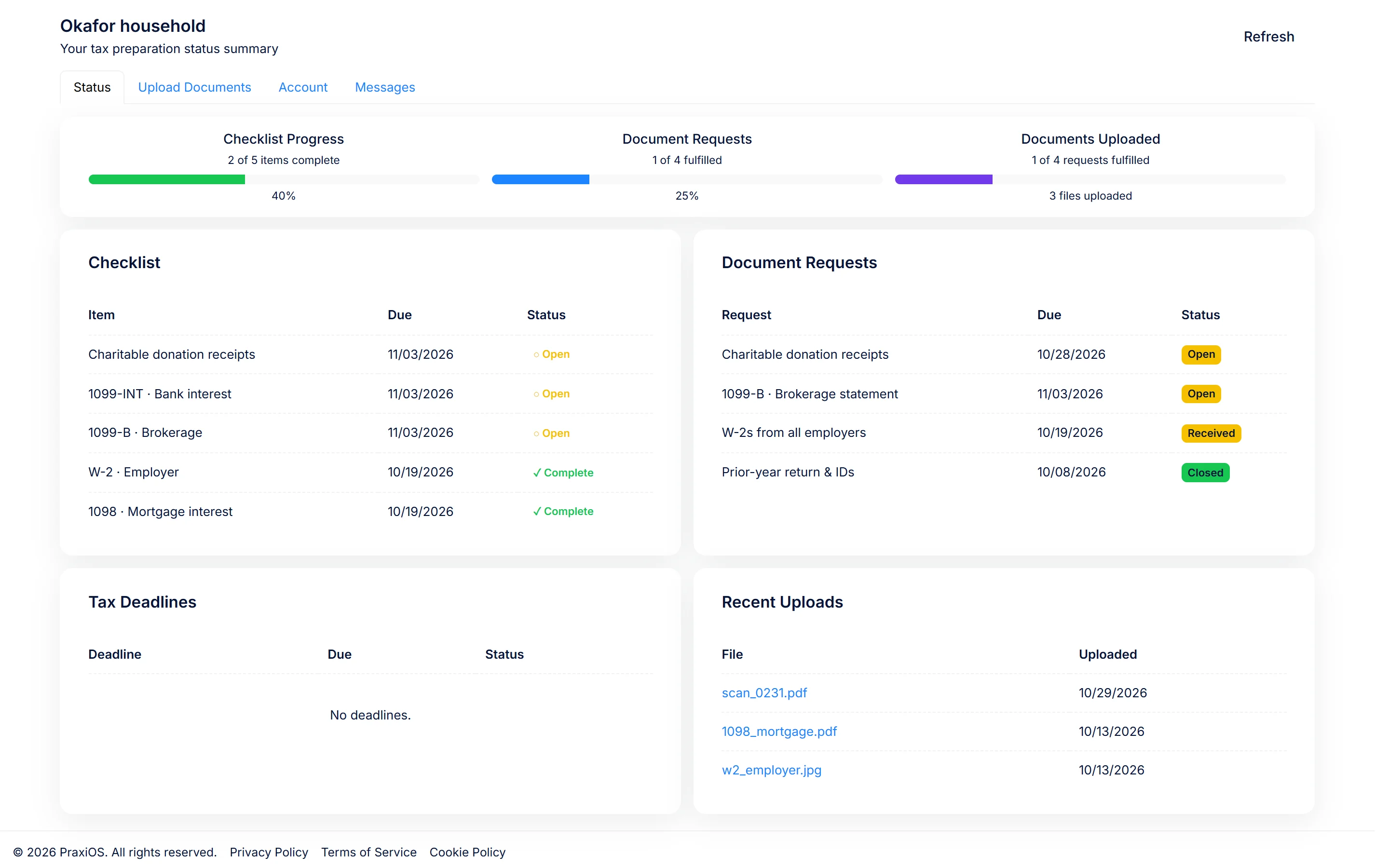
Example PraxiOS client portal for the Okafor household: 3 of 5 checklist items complete, a brokerage statement still requested, and an uploaded scan read as Form 1099-INT and linked to the bank interest checklist item for the preparer to confirm.
Key facts
- Who it's for
- Accounting, bookkeeping and tax firms of 1–50 people, and the clients they collect documents from.
- Client access
- A secure link per client, valid 1–30 days, optionally single-use. No client account, username or password.
- Uploads
- PDF, JPG, JPEG, PNG, GIF and TIFF, up to 50 MB per file.
- Document reading
- OCR (optical character recognition), then matching to the client's checklist. A preparer confirms every match.
- Plan availability
- Every plan, with unlimited clients. PraxiOS starts at $299/mo for up to 5 users.
- Messages
- Clients can send the firm a text message from the portal; staff replies are emailed to the client.
- Not included
- E-signatures, live chat and file attachments in messages are not available today.
01 / Secure links
How do clients get into the PraxiOS portal?
Clients open a secure link that your firm generates from their page in PraxiOS — there is no account to create and no password to forget. A manager or admin picks how long the link works, from 1 to 30 days, and can make it single-use so it stops working after the first visit.
The full link is shown once, right after you generate it. PraxiOS stores only a salted hash of it, so nobody can read the link back out of the database later. Once a client opens it, a signed session keeps them in for up to 4 hours while they upload.
- Expiry from 1 to 30 days, with an optional single-use mode
- Generate a new link to rotate access, or revoke it in one click
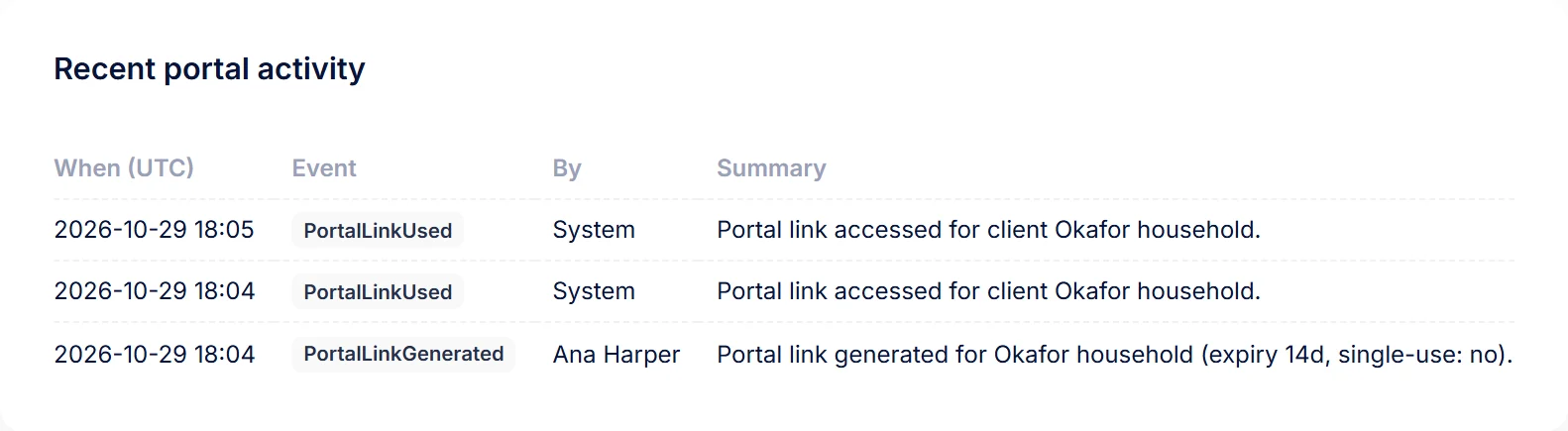
- Last-access time and a log of every link generated, used and revoked
- Upload rate limit of 20 files per 5 minutes to keep out automated abuse
02 / What clients see
What does a client see in the portal?
A client sees four tabs: Status, Upload documents, Account and Messages. Status shows their checklist with how many items are complete, your document requests with due dates and whether each is fulfilled, and the files they've already uploaded. Upload documents is where they send files. Account shows the profile and contact details your firm keeps for them.
Messages lets the client send your firm a short text note (up to 2,000 characters), and the staff who own the client get it by email. Staff reply from the client's page in PraxiOS; the client is emailed the reply and sees the conversation in the Messages tab.
- Checklist progress, e.g. “3 of 5 items complete”
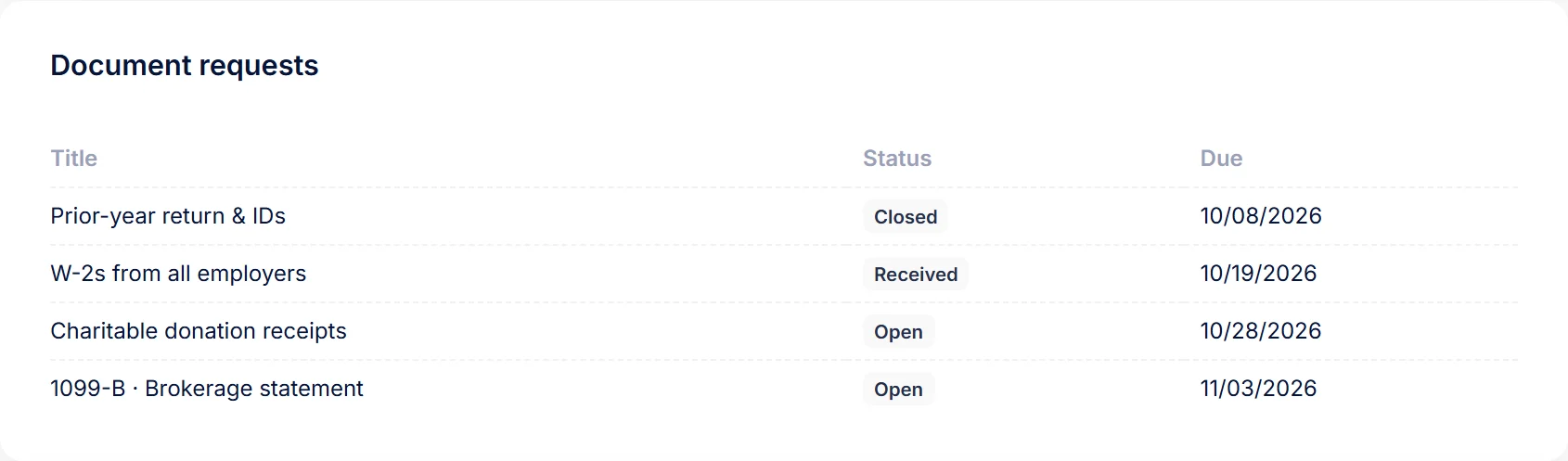
- Document requests with due dates and status
- Recent uploads the client can download again
- Text messages to the firm, with staff replies emailed to the client
03 / Document recognition
How does PraxiOS match uploads to checklist items?
PraxiOS extracts the text from each upload with OCR that reads forms and tables, works out what kind of document it is, and links it to the checklist item it most likely satisfies. It also pulls out the main amount, the dates and tax year, and the parties named on the document, such as the employer or bank.
Strong matches are flagged for a preparer to confirm. PraxiOS never marks a checklist item complete on its own — a person on your team does. Matching works best when checklist items are named the way the forms are (“W-2 · Employer”, “1099-INT · Bank”) and carry an engagement type.
- Recognizes W-2, 1099-NEC, 1099-INT, 1099-DIV, 1099-MISC, K-1 and 1098
- Also bank and credit card statements, receipts, invoices and expense reports
- Staff uploads go through the same reading and matching
04 / Requests & staff view
What does my team see when a client uploads?
Your team sees each upload in the client's documents, alongside the checklist, open document requests and a log of portal activity on the client's page. Staff can also open the client's status page to see exactly what the client sees.
Document requests carry a title, instructions and a due date, and move through Open, Received, Verified, Expired and Closed. A request that isn't closed as its due date gets close triggers a reminder email to the staff who own that client.
- Document requests with instructions, due dates and five statuses
- Per-client checklist with engagement type and due date
- Portal activity log: link generated, used and revoked
How it works
How to collect client documents with PraxiOS.
Collecting a client's documents through the PraxiOS portal takes six steps, and the client only does one of them.
- STEP 01
List what you need
On the client's page, add checklist items (“W-2 · Employer”) with an engagement type and due date, and create document requests with instructions.
- STEP 02
Generate a portal link
A manager or admin picks an expiry of 1–30 days and, if you like, single-use. Copy the link — it's shown only once.
- STEP 03
Send it to your client
Paste the link into your own email or message. Your client doesn't create an account or a password.
- STEP 04
The client uploads
They see what's outstanding on the Status tab and upload PDFs or photos up to 50 MB each from a phone or computer.
- STEP 05
PraxiOS reads and matches
OCR extracts the text, PraxiOS identifies the document and links it to the right checklist item. A preparer confirms it.
- STEP 06
Rotate or revoke
When collection is done, revoke the link. Need access again later? Generate a fresh one.
Inside PraxiOS
See it in the app.
Real PraxiOS screens, with demo data loaded.
Real PraxiOS screens with demo data; names and figures are made up.
Straight answers
What PraxiOS doesn't do (yet).
If one of these is a must-have for your firm, it's better you hear it here than in week two.
Live chat and attachments in messages
Portal messages are text notes delivered by email, not real-time chat. Clients send files through Upload documents, not in a message.
E-signatures
PraxiOS doesn't collect signatures on engagement letters or Form 8879. Use your existing e-signature tool alongside it.
Automatic invitations and client reminders
PraxiOS doesn't email the portal link or chase the client for you. Reminder emails go to your staff, who decide when to nudge.
Branded client accounts
The portal is link-based by design. There is no client login, white-labelled app or mobile app.
FAQ
Client portal questions.
From the blog: How to collect client tax documents without the email chaos
Something else? Email us and a person will answer.
Do my clients need an account to use the PraxiOS portal?+
No. PraxiOS clients open the portal from a secure link your firm generates on their page. There is no username or password for them to create, and you choose whether the link lasts 1 to 30 days and whether it works only once.
Is it safe to send tax documents through a link?+
PraxiOS protects portal links in several ways: each link is a long random token, only a salted hash of it is stored, the full link is shown to your staff once, and it expires after the 1 to 30 days you choose. You can make it single-use, and you can revoke or rotate it at any time. More detail is on the PraxiOS security page.
What files can clients upload to PraxiOS?+
Clients can upload PDF, JPG, JPEG, PNG, GIF and TIFF files to PraxiOS, up to 50 MB each. That covers phone photos, scanner output and the PDFs that employers, banks and brokerages send.
Does PraxiOS mark checklist items complete automatically?+
No. PraxiOS reads each upload with OCR, identifies the document type and links it to the checklist item it most likely satisfies, but a preparer on your team confirms before an item counts as complete.
Can clients message my firm through the portal?+
Yes. In the PraxiOS portal, clients can send your firm a text message from the Messages tab, and the staff who own the client are notified by email. Staff reply from the client's page in PraxiOS, and the client receives the reply by email and in the portal. It isn't real-time chat, and files are sent through the upload tab rather than in messages.
Is the client portal included in every PraxiOS plan?+
Yes. The client portal and document matching are included in every PraxiOS plan, with unlimited clients. Plans differ only by the number of users and the level of support; see PraxiOS pricing.
More of PraxiOS
Get started
Stop chasing documents over email.
See the PraxiOS client portal with one of your own checklists, or compare plans and start today.